LensApp Pro Manual
LensApp Pro is the systematic rating tool for photographers. Document the image quality of your lenses across focal length, aperture, and scene type — and find your personal sweet spot.
The Rating System
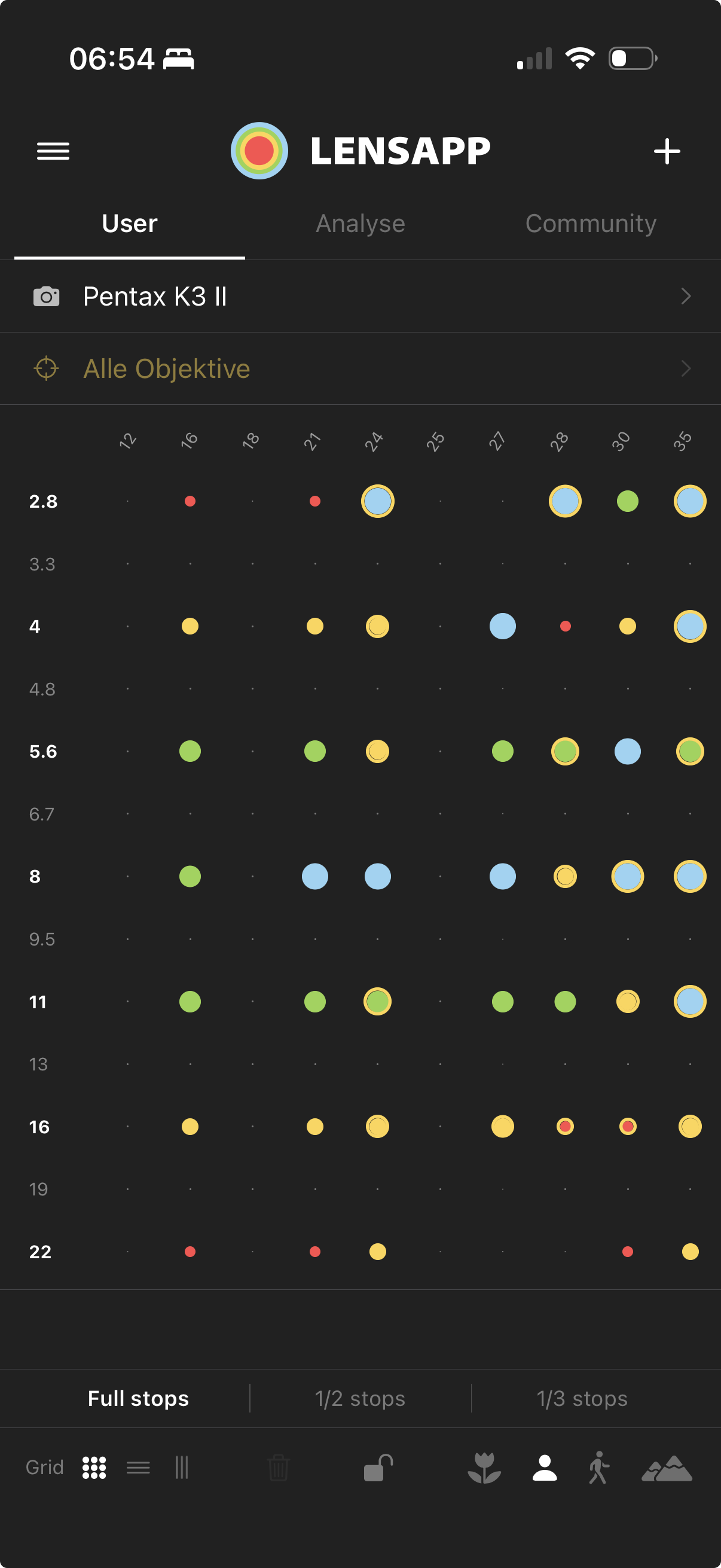
5 quality levels — visualized as colored circles of different sizes in the matrix.
Tap once to set the next level. Another tap cycles further — back to "empty."
Quickstart in 4 Steps
Create Camera
Tap + at the top right → "Add Camera." Enter manufacturer and model.
Create Lens
+ → "Add Lens." Enter the focal length range — the app automatically suggests sensible test points.
Choose Scene & Granularity
In the toolbar at the bottom, select a scene (Portrait / Street / Landscape / Macro) and aperture steps (Full / Half / Third).
Fill & Analyze Matrix
Tap cells and rate. In the Analysis Tab, you'll immediately see sweet spots, curves, and weak points.
The Rating Matrix
Each cell = a combination of focal length (column) × aperture (row). The matrix shows at a glance where your lens is strong and where it is weak.
Scene Types
| Scene | Icon | Focus |
|---|---|---|
| Macro | Close-range sharpness, subject separation, color rendering at minimum distance | |
| Portrait | Central subject sharpness, bokeh quality | |
| Street | Micro-contrast, flare, rendering in backlit situations | |
| Landscape | Edge-to-edge sharpness, vignetting, overall resolution |
Toolbar & Options
| Option | Description |
|---|---|
| Lock Mode | Prevents accidental changes – cells glow yellow when a tap effort is detected |
| ½/⅓ Steps | Full, half, or third aperture steps as matrix rows |
| Placeholders | Toggle small gray dots for unrated cells on/off |
| Lines | Horizontal and vertical grid lines can be toggled separately |
| Delete | Deletes all ratings for the current scene + category after confirmation |
Sidebar & Navigation
A swipe gesture from the left edge of the screen opens the sidebar. All created cameras and lenses appear there. Tapping one immediately switches to the respective matrix.
All Lenses at a Glance
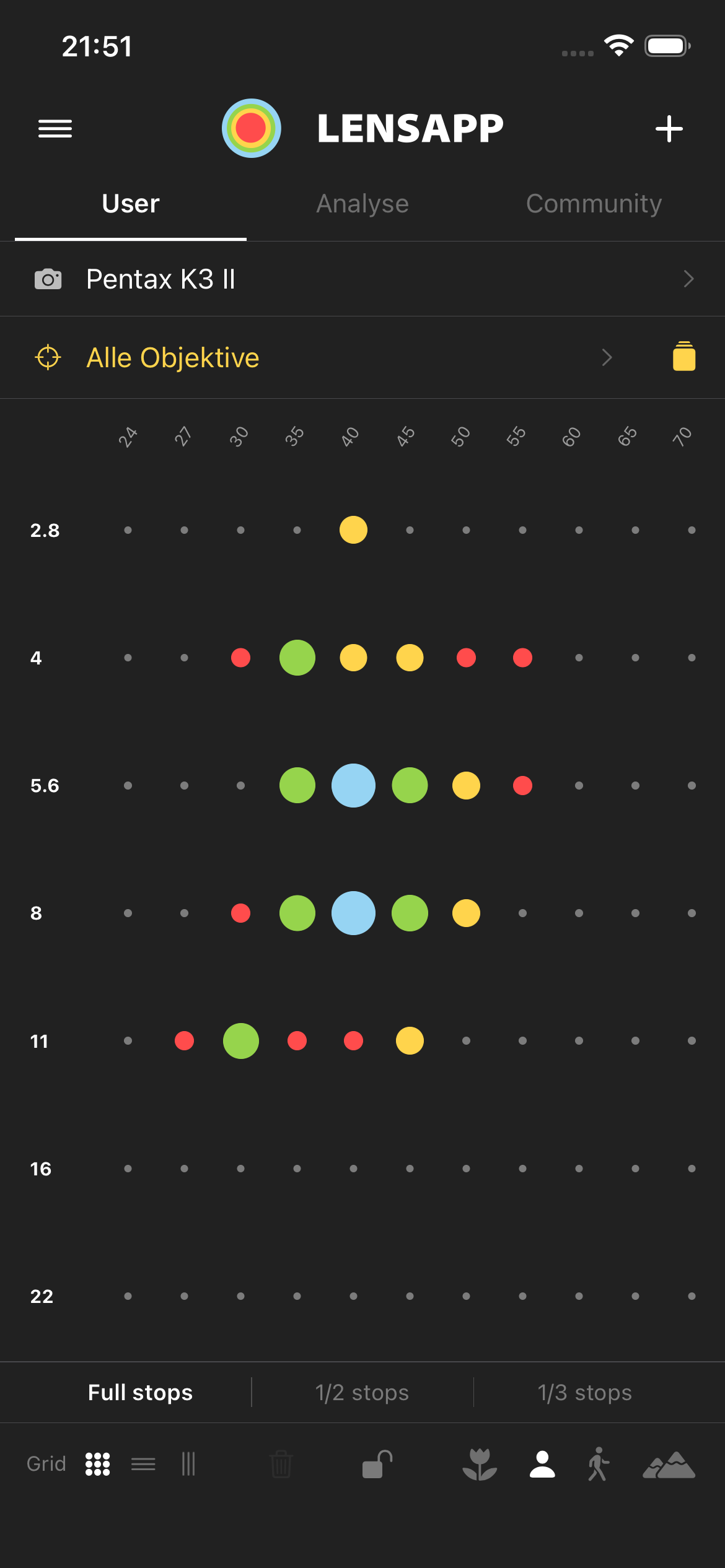
The Master Lens Collection Matrix aggregates all rated lenses into a single, non-editable overview — ideal for seeing at a glance which lens is the best choice for a specific focal length + aperture combination.
Activation
In the Lens Selection area, a stack icon appears to the right of the lens name (⊡). Tapping it activates the "All Lenses" mode — the icon glows yellow, and the label changes to All Lenses.
How to Read the Matrix
Each cell shows the best rating achieved by any lens in your collection for that focal length × aperture combination. Circle sizes and colors follow the same logic as the normal matrix:
| ● Small Circle | Poor – low potential at this combination |
| ● Medium Circle | Average – usable but not ideal |
| ● Large Circle | Good – recommended focal length/aperture range |
| ● Very Large Circle | Excellent – optimal range for this lens |
Tie Indicator
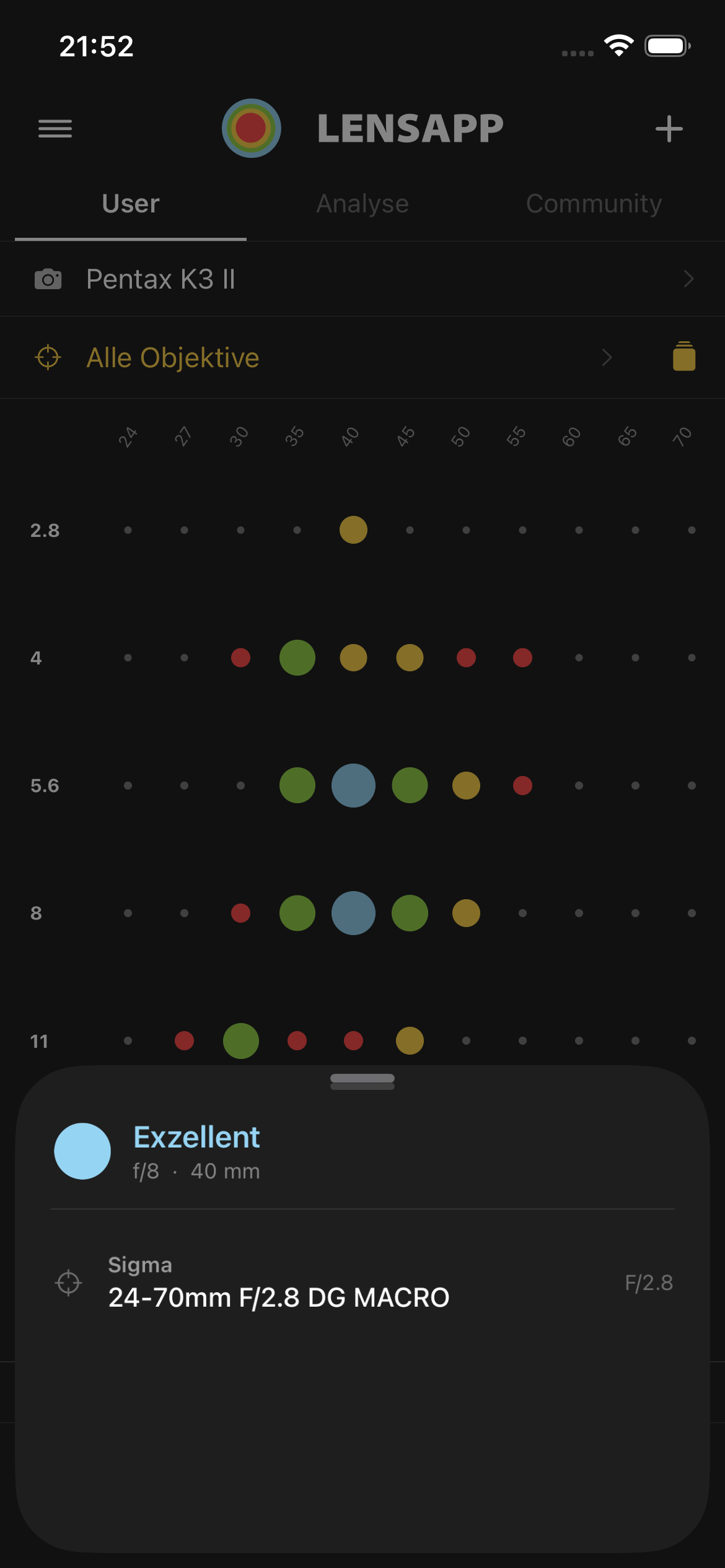
If multiple lenses share the best value for a cell, a yellow ring appears around the dot. Tapping the cell opens a popup with all relevant lenses and the exact rating level.
Popup Details
Tap a rated cell to open the Lens Info Popup. It shows:
- Rating level (color + label)
- Exact aperture and focal length
- All lenses that reach this best value (labeled with a badge in case of a tie)
- Maximum aperture of each lens
Nerd Mode
For photographers who want to document every optical property separately. The overall matrix is automatically calculated from these values.
Optical Properties
A scrollable bar appears at the bottom of the matrix area with one icon per property. Tapping switches the active category — the matrix then shows only ratings for that specific property.
Weighted Aggregation
When sub-property ratings exist for a cell, LensApp calculates a weighted average for the overall matrix. Key rules:
- Sharpness Dominance: Sharpness carries the highest weight (50% of the total score).
- Data Integrity: Unrated properties count as "Poor" (Red) once you start rating a cell. This ensures a top overall score requires comprehensive testing.
- Inactivity: If no Nerd Mode values are entered at all, the overall cell remains gray (or manually editable).
Computed Indicator
Aggregated cells in the overall view are marked with a colored ring (red for most, yellow on the red dot). Tapping such a cell only provides visual feedback — the value is read-only as long as sub-ratings exist.
Analysis Tab: Statistics
The Analysis tab automatically evaluates your ratings. Select a lens and a scene at the top — all cards update instantly.
Progress Ring
Shows how many cells of the matrix are already filled. The color changes from red (low) through yellow and green to blue (nearly complete).
Scene Comparison
Shows the average rating for all 4 scenes side-by-side — ideal for seeing which use case the lens is best suited for.
Strengths & Weaknesses
On the left, the best aperture and focal length (sweet spot); on the right, the weakest. This allows you to immediately recognize where the lens shines and where it is limited.
Aperture Quality Curve
A line + area chart shows how the rating changes across all aperture levels. Typical for lenses: weaker at wide open apertures, sweet spot at f/5.6–f/8, slight decrease due to diffraction at f/16+.
Property Profile (Nerd Mode)
Only visible when sub-property ratings are present. Shows the average value for each optical property as a bar — with a yellow frame as a Pro indicator.
Community
Share your experience with other photographers or import external matrices as a reference.
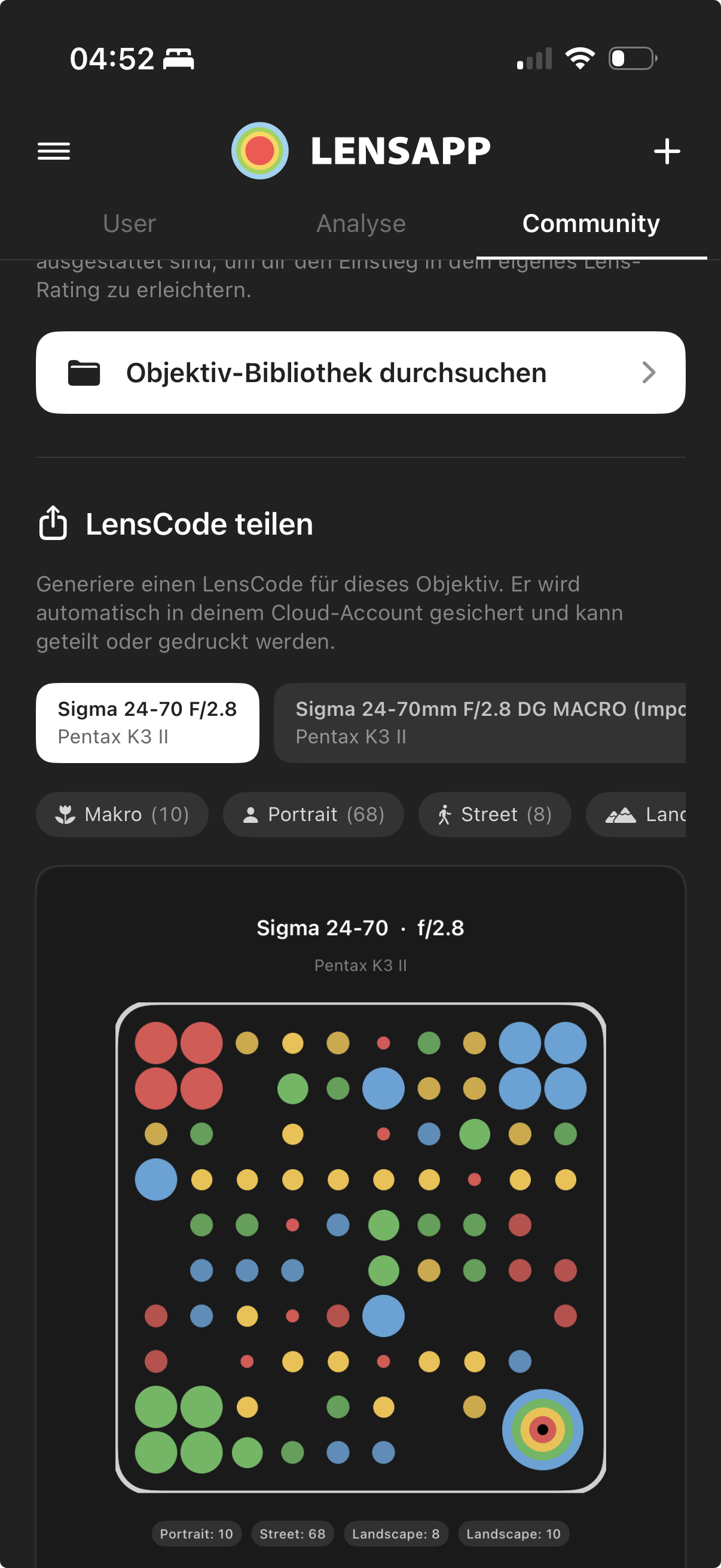
Create LensCode
A unique QR code with an app icon – directly suitable for social media sharing.
Import LensCode
Scan another user's code and implement their experiences as a comparison.
LensCode Library
Use the integrated library as a starting point. Then, the best way to interact is directly through LensCodes within the community!
Cloud Backup
All data is automatically secured – restore with one tap on a new device.
What is a LensCode?
A LensCode is your optical fingerprint for a lens. It stores your entire matrix in a compact, scannable code. This allows you to share your experiences with the community in a flash or create backups of your setups.
- No Cloud Required: Data is encoded directly into the code.
- Platform Independent: Share it as an image via Instagram or WhatsApp.
- Easy Import: Scan other users' codes for direct comparisons.
Free vs. Pro
LensApp is free to use. Pro unlocks all power user features.
Everything you need to get started.
- 1 camera-lens combination
- Full rating matrix
- Analysis tab (all cards)
- All scene types & aperture steps
All free features, plus:
- Unlimited combinations
- Nerd Mode – 6 sub-properties
- Share & import LensCode
- 3D Matrix View
- Cloud backup & restore
- All future Pro features